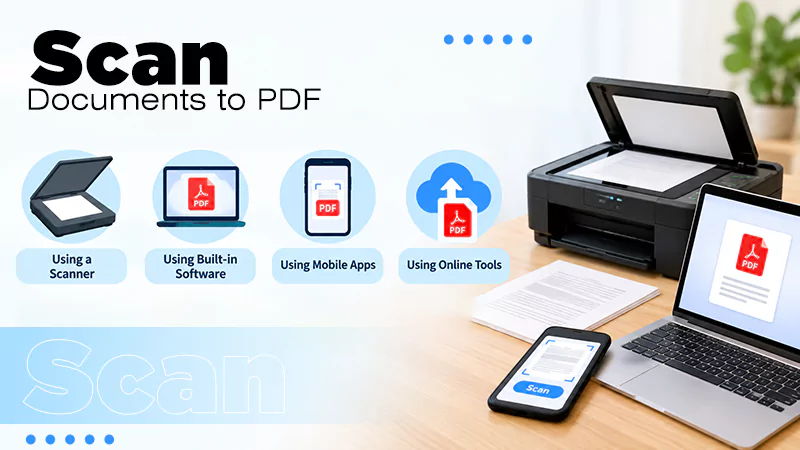
Digitizing documents used to be tough; now it’s easier with scanning apps, smartphones, and digital scanners that can digitize documents in bulk. Scanning documents helps to secure them by making digital copies, keeping them safe from being damaged, allows instant digital sharing.
This guide will tell you how to scan a document step by step using various devices and save it in PDF format so that the layout can be preserved and can be accessed on any device.
Scanning a document means taking a picture or scanning it using a scanner, printer, or smartphone, which is then saved in a digital format. Document scanning is different from making it a digitally editable document. While scanning a document only saves the document in a digital format, a digital/editable document allows you to edit it and make it a workable document to modify accordingly by cropping or resizing it.
It has various uses and advantages that save time and space and make documents accessible and secure. According to organizational assessments by theAssociation for Intelligent Information Management (AIIM), shifting to centralized document scanning enormously lowers corporate paper, ink, and storage footprints. Some common uses of scanning documents are given below:
Work is processed faster: It saves time and energy on document retrieval, which means faster task completion.
Quick decisions are taken: Easy access to the right information at the right time helps make practical decisions.
Enhancement of the output: Working with and handling digital documents is easier than dealing with hard copies or files with lots of pages, which ultimately makes a person more efficient.
Cost efficiency: Less handling and storage of paper cuts the cost required to buy the sheets and files in the workplace.
When scanned information needs to be extracted and used in digital workflows, data extraction can help turn information from documents into usable data.
How to Scan a Document From a Scanner
A scanner is one of the best ways to scan documents properly to get high-quality, well-lit, and faster scanning. Scanning documents using a scanner can be done in a few simple steps.
Step 1: Prepare the Document
Before scanning the document, it must be in proper/readable condition to be scanned.
Take the document and remove all the staples and straighten the pages so that all the text on the page is clearly visible.
Place the document perfectly straight on the scanner, facing down the side you want to scan.
Step 2: Place the Document on the Scanner
Use the flatbed scanner to scan a single-page document for high quality, or the automatic document feeder if you have multiple pages to scan or have two-sided documents. Before placing the papers into the scanner, make sure to switch it on using the power button provided on it.
For the Automated Document Feeder (ADF)
Straighten the documents
Carefully place the document aligned to the glass tray
For the flatbed scanner
Straighten your documents
Put the document in the feeder with the content side facing down
The scanner will automatically fetch the document when scanning begins
Step 3: Connect the Scanner
A scanner can be connected to the computer either via a wired or wireless connection for both Mac and Windows users.
Switch on the power button on the scanner and make sure it is properly connected.
For Windows users
Open Settings and click on the Devices option.
Search for printers and scanners.
Select the Scanner.
Note: If your scanning device is not shown on your operating system, then you should consult your scanner installation documentation for support.
For Mac users
Open the Apple Menu and select System Settings.
Select Printers and Scanners.
See your scanner name on the list of devices shown in your operating system.
The next steps for scanning and saving are a bit similar on both Mac and Windows. Select the options according to your device. Getting to know one of them will be enough for you to scan documents easily on both devices.
After selecting the printer and scanner on your device, follow the below-given steps.
Open the scanner.
Choose the place where you want to save your document
Note: While Apple has its own scanning tool called Apple Image Capture, there are certain advantages to using the manufacturer’s software to have some additional features like OCR (Optical Character Recognition), which makes the scanned documents automatically editable/textable.
Also, if your Mac does not recognize the scanning device, then scanning will not be possible. Using the manufacturer’s software guarantees that ICA drivers are installed on your device to connect properly to the scanning device.
Step 4: Select Scan Settings
Before initiating the scan, you must set your scanning preferences from your software, like color, resolution, or the desired file format, to get high-quality scans.
Color: Choose the color option as black and white or one of the different color options available. Scanning for black-and-white output is quicker and an easier option, but you can choose color according to your needs.
Desired File Format: Select the document file extension as PDF or JPEG, as these are preferred for high quality and size.
Resolution: Generally, the default resolution of 300 DPI (dots per inch) is used to scan documents. You can increase the number for higher quality and larger size, but make sure there is a correct balance between both size and quality, as increasing the DPI may impact the file size.
Step 5: Scan and Save
You can simply click on the scan button to start the scan after selecting all the scanning preferences. Similarly, you can start a scan by using your scanning software on your device instead of the scanning device by going to scan settings and then clicking on New Scan.
After setting up all preferences, initiate the scan.
Before making the final scan, check the preview of the final scanned doc. Check for issues like missed edges, page tilt, or page order, and fix the issue.
Click the Scan button; it will take a few minutes depending on the pages in a doc and their detail.
The next step is to save the doc; Windows’ default Fax and Scan saves the document in the Documents subfolder. Alternatively, you can save the scanned document by searching for the document folder in the Windows search bar and, after selecting it, save the document according to your preferred file type.
Note: On Mac, your scanned images are saved to the default location designated by your scanner. To keep the desktop clean, Mac automatically gives the option of Scan To, which directs to its Pictures folder, where you can save your file. For scanned documents that need their text recognized automatically, optical character recognition (OCR) can convert text within images into machine-readable content.
How to Scan Documents to PDF
Scanning documents to PDF (Portable Document Format) is the most common way to secure your physical papers in digital formats. Easy access, better searchability, editability, and space management are the major advantages of having documents in PDF format. Here are some steps to scan documents to PDF.
Connect your scanner to your device.
If using an Automatic Document Feeder, put the stack of pages into the scanner. If using a flatbed scanner, add the first page and scan it. Repeat for the remaining pages until you are finished. Choose to combine the pages into a single file or multi-page PDF. In the preview, you can check for the changes you have made.
Set all scanning preferences. Select PDF as the file format. Rather than other file types like JPG or BMP, PDF keeps multiple pages in a file, secured and bound together in one place.
Check the options, such as
Resolution: Choose the default resolution of 300 DPI for regular small-size documents for better quality. Go for 600 DPI for highly detailed images and documents.
Page orientation: Choose the page orientation as Portrait or Landscape. Many scanning software programs have an auto-rotate option, which firstly sees the direction of the text and then flips the pages right side up automatically.
File Naming: For easy access to your files, keep the file name clear and simple, like {annual-function-photographs-1-09-2026}
Save all pages as one combined PDF.
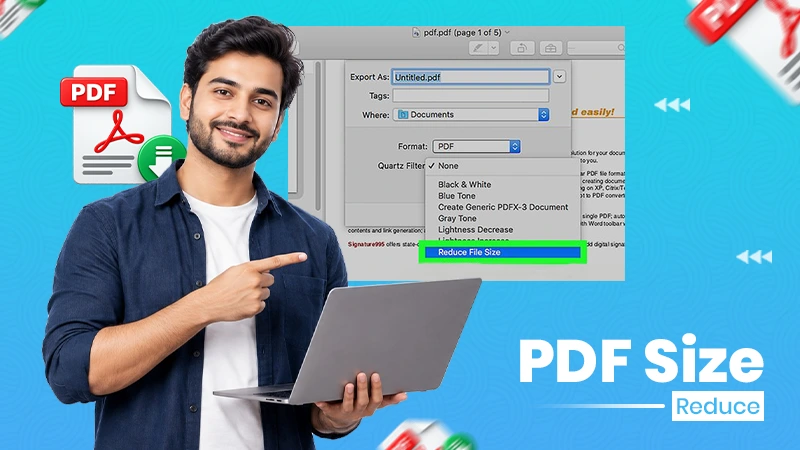
When scanned PDFs become too large to share or store, you can reduce PDF size while retaining the document in a more manageable format.
How to Scan a Document With a Smartphone
Scanning documents with a smartphone is the easiest way to digitize your documents. It helps with the easy sharing of documents and cuts the extra cost of a printer or scanner. Phones are portable, so you can scan anytime, anywhere, quickly. Some easy steps to scan documents using a smartphone are:
1. For Android Users
On Android, there are various methods to scan documents, like using the built-in camera, the Notes app, or the Google Drive app. Have a look at how to scan the document using Google Drive.
Open Google Drive on your smartphone or Android phone, and click on the plus icon at the bottom-right corner.
Click on the scan icon
Using the Scan button, take a picture of the document you want to scan by keeping the document in full focus. Make sure the document is straight; its text should be clearly visible on the phone screen.
Once the picture is taken, add other pages using the same plus icon if you have multiple pages to scan.
Tap Save, then change the document file name according to your own preference, choose the format and location where you want to save the scanned document, and save it.
2. For iPhone users
Open the Notes app and choose the Notes button from the visible options.
Tap the pin icon and select the Scan Documents option from the visible options.
Take a picture of the document you want to scan by keeping the document in focus, the same as you would on an Android phone.
After taking a clean picture, crop it according to your choice and save it. You can add more pages to scan if you have a multi-page document.
3. Using the Scanning Software
There are various scanning software options available on app stores/the Play Store that you can use to scan your documents properly. Scanning documents using this software gives you additional benefits like better picture quality, OCR, image enhancement, password encryption for certain confidential files, and less usage of time and space.
Steps to scan documents using scanning software
Open the software on your phone and click on the given scan or camera option (whatever is shown in that software).
Scan the document using your phone camera by keeping the document in clear focus and keeping it straight.
After taking a picture, many software programs give the option of image enhancement (cropping, color brightness, rotating, etc.). Make the desired changes.
If you need to scan more pages, click on the add or plus icon, whatever is provided, and complete the scanning process.
Save the file in your desired format (PDF, JPEG) by renaming the file.
For organizations handling large volumes of scanned information, combining document scanning with data processing can help turn digitized information into usable records and workflows.
Tips for Better Scanning Documents
A scanned document will look good only if the scanning process is done correctly and with proper care and steps. From the right device to good scanning software, all play a very important role in making a good scan. Here are some of the tips that you can follow to have better scanned documents.
Good Quality Scanners: Scanners are of various types, like small or highly specialized ones. You should choose the scanner according to your requirements; if you rarely scan documents, then you can have a small-budget scanner that gives quality scans without delay. However, if you are a working professional who keeps scanning documents regularly, then you should have a highly multifunctional scanner that can not only give quality scans in a short period of time but also provide you with some other features like photocopying, printing, etc.
Managing Document Feeder: A widely used automatic document feeder is the tray that is used to insert the stack of documents you want to scan through the scanner. Make sure it is working properly. Don’t put all the documents in at a single time, as it may affect the feeder’s operation or damage the scan quality.
Documents should be in good condition: Make sure the documents you want to scan are not torn, and the text written on them is not too blurry to read.
Cleaning of Scanner Glass: Proper cleaning of the scanner glass should be done frequently to avoid smudges and marks on paper.
Choose the scanning preferences carefully: make sure all the color, resolution, and format settings that you have chosen fully match your requirements. Scanning carelessly may waste your time, resources, and energy.
Common Problems When Scanning a Document
Scanning a document is an easy task, but with various software, apps, and devices, it may happen that document scanning doesn’t seem like a smooth process. Common problems in document scanning include the scanner not being connected to the device, software failure, torn documents, electrical issues, etc.
Here are some of the common problems that people generally face while scanning documents:
1. Scanner Is Not Detected
The first step to scanning documents is to connect the scanner to the computer to ensure smooth coordination between the scanner and the computer. There can be issues with the connection, drivers, or manufacturer software.
How to fix:
Check the connection: If both the scanner and the computer are not connected properly, then switch off both devices and turn them on again after a few minutes. Make sure the USB cable is connected to both devices.
Driver Reinstallation or Update: Update the drivers by going to Device Manager. Then click on Imaging Devices or Printers. Lastly, by selecting your scanner, click on Update Driver.
2. Scan Looks Blurry
Sometimes the problem is not with the devices but with us, like we don’t use the devices properly, don’t take proper pictures of the documents, or maybe we don’t know the proper techniques for using and handling a scanner.
How to fix:
Clean the scanner glass at least once a month for clean scans without any marks.
Manage resolution according to the requirement. For regular small-size documents, high resolution is not necessary. But for highly detailed images, setting the scanning preferences to 600 DPI is preferred.
Keep the document properly in the scanner; take the picture with your phone. Keep proper lighting on the document and a flattened surface under the paper to ensure a clear picture. Organizations processing scanned files at scale may also use data entry automation to reduce repetitive manual work after documents have been digitized.
3. PDF File Is Too Large
People who work with documents regularly have to create and deal with multiple PDFs. Thus, creating and scanning a PDF with a lot of pages hinders the scanning process, as sometimes scanning software crashes during the process, and system memory is exhausted.
How to fix:
Avoid high-quality color scans where possible. If you are a student who just wants notes for study, then there is no need to have high-quality color scans unless there are images in the document.
PDF Compression: Before scanning the document, compress it to a smaller file size so that it doesn’t hinder the scanning process due to its large size.
Organizations processing scanned files at scale may also use data entry automation to reduce repetitive manual work after documents have been digitized.
Frequently Asked Questions
How do you scan a document?
Document scanning can be done through a smartphone, a scanning device, and scanning software. For a smartphone, you can use the phone’s built-in apps or features to take good pictures and save them. For a computer, you need to connect the scanner to the computer, then select the scanning device in your computer, then place the document properly on the scanner, then use the built-in scanning feature or the manufacturer’s software to set the preferences (color, resolution, and file format), and then finally hit the scan button and save it.
How can I scan documents to PDF?
Combine multiple pages of a document into a single PDF. While selecting the scanning preferences via your scanning software, choose the file type as PDF instead of JPEG, BMP, or any other file format.
Can I scan a document without a scanner?
Without a scanner, you can scan documents using a smartphone. It is one of the easiest ways to scan documents. Just open the built-in scanning feature or the scanning app/software on your phone, click the picture of the document, add pages if required, and save it by changing the file name, format, and other changes like image enhancement (cropping, coloration, rotation, etc.).
Can I scan multiple pages into one PDF?
Yes, you can scan multiple pages into one PDF using an automatic document feeder, which allows you to keep a stack of documents in the tray provided in it and scan multiple pages at one time in a short period of time in good quality.
How can I make a scanned document searchable?
To make the documents searchable and editable, you must use Optical Character Recognition (OCR) software, which converts the images’ text into digital, machine-readable, editable, and searchable text. Many software and apps, like Microsoft Word and Google Docs, offer this feature at no cost.
Conclusion
We have discussed in detail various how to scan a document. Scanning documents helps to keep the documents safe, secure, and easily accessible in digital format. Various ways to scan a document are using a smartphone, scanning devices, and scanning software. While a scanner is ideal for multiple or high-quality documents, smartphones are convenient for quick scans. Choose the type of scanner and software that fulfill your requirements.
Besides focusing on the software and hardware used for scanning, we must focus on the proper positioning of the document, various techniques for using the devices, taking a good scan, and how to save it in different file formats.
 By Jim Hartman




 By Tina Brown