 By Tina Brown
You can easily reduce PDF file size by compressing images, removing bloating elements, optimizing the document, or using compression software.

More often than not, PDFs become too large because they contain high-resolution images, scanned pages, embedded fonts, hidden data, and more.
All these things inflate their sizes beyond email limits. Every time that happens, it gets frustrating.
But you don’t need to worry about that. There are several ways to compress PDF files while still maintaining readability.
If you are looking for how to reduce PDF size, this guide is for you. It explains all the methods to compress PDF files on Windows, Mac, smartphones, and online.
If you are wondering why your PDFs are feeling as heavy as lead and dragging your computer down, you are likely dealing with the following culprits.
Now, we’ve come to the real deal – how to reduce PDF file size. If you don’t want your computer to do too much heavy lifting, then relying on web-based compressors can turn out to be a lifesaver.
Let’s check out the steps you need to take.


Now, you might be wondering what the benefits of using web-based compressors to shrink PDF file size are.
Well, if you are using this feature more often, then you might be better off using desktop software because these software can do heavy lifting at scale.
Let’s take a look.
There is an option to save your file as an optimized PDF right there in Windows. But before doing that, you might want to review your PDF and remove unnecessary elements.
Such as:
And more…
Once you’ve done all that, you can begin saving your file.

The optimizer feature gives you complete control over elements you add in the file. Check the boxes you want to optimize, such as fonts, images, and more.
In some versions of Word, when you are saving the file as a PDF, there is an option to reduce the PDF file size.
Here is how you can use it with ease.


If you are someone looking to reduce PDF size on Windows, then you can use these techniques.
Windows Print to PDF: Open your PDF in a web browser and then try to print it. Then select Microsoft Print to PDF as your printer.

Essentially, it removes all the unnecessary elements from the file without breaking a sweat.
Adjust Microsoft Office Export Settings: We’ve discussed this option in detail in the above section. In essence, you have to select the minimum size (publishing online) option instead of the standard.
Third Party PDF Software: If all else is not working, you can always rely on third-party PDF software. They come with all the modern bells and whistles required for a comprehensive PDF tool.
If you are wondering how do I make my PDF smaller on a Mac device, there is no need to get worked up. macOS comes with built-in PDF tools.
Use Preview: Apple’s built-in Preview software can lighten the PDF file in a heartbeat.


Note: You must know that Preview is very aggressive in compressing images. So, they might become blurry.
Third Party PDF Tools on Mac: When native programs do not make the cut, desktop applications take charge.
Use an application like Adobe Acrobat to compress your PDF. We’ve listed the steps required for that in the above section.
Online Compression: If all else fails, online compression platforms are always there, whether you are using a Windows or Mac system.
Shrinking documents on an Android device is also as easy as pie. Android offers a clear path to trim excess bloat on the go.
Compressing PDF files on an iOS device is relatively straightforward, thanks to its built-in features.
Use the Native File App: If you are running modern iOS, then there is good news for you. Apple has a built-in compression ability in its Files app.

Mobile PDF Apps: When the built-in option is not worthy of your attention, there is always the option of mobile PDF apps. These PDF apps offer A-Z features related to PDF, even compression.
Cloud-Based Compression Tools: If you aren’t using this too frequently, then there is no need to download additional apps. Just use any cloud-based compression tool to satisfy your needs.
Are you looking for how to make a PDF smaller without losing quality? Here is the list of best practices you should follow to make it shed some MB.
A few methods work like a charm in reducing the MB of PDF. You can easily cut them down to size by doing the following things:
Here is a quick comparison of these methods.
| Method | Expected Size Reduction | Quality Impact |
| Image Compression | High | Low–Medium |
| Remove Metadata | Low | None |
| Optimize PDF | Medium | Minimal |
| Lower Resolution | High | Medium |
| Remove Embedded Fonts | Medium | Low |
Before answering the real question, how to reduce PDF size, let’s first take a look at the benefits of reducing PDF file size.
Learning how to reduce PDF size makes it easier to share documents, meet upload requirements, and save storage space without sacrificing important content.
The most effective methods of reducing PDF size are online compression tools, the Adobe Acrobat method, or native built-in compression tools on different devices.
However, choosing the best one depends on what your needs are. If you need one-time service, depending on online compression, it is the way to go. However, for bulk compressions, you’d be better off with dedicated software.
You can easily reduce PDF file size by compressing images, removing bloating elements, optimizing the document, or using compression software.
Use PDF optimization features, compress images, lower scan resolution, or save the file with reduced size settings.
Yes. Using optimized export settings and lossless compression can reduce file size while maintaining good readability and image quality.
Scanned documents, embedded fonts, and high-resolution images may still contribute to a larger file size even after compression.
Optimize the PDF, compress images, remove unnecessary pages, and ensure the final file meets your email provider’s attachment size limit.
How to convert HEIC to JPG? Every Apple user asks this question when they are unable to send the captured…
October 7, 2026
Digitizing documents used to be tough; now it’s easier with scanning apps, smartphones, and digital scanners that can digitize documents…
September 18, 2026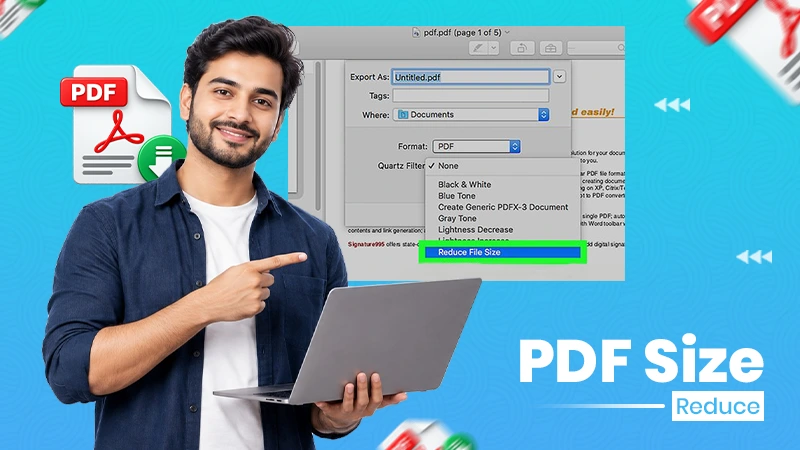
More often than not, PDFs become too large because they contain high-resolution images, scanned pages, embedded fonts, hidden data, and…
September 1, 2026
In this fast-moving world. Automation is the key to enhancing efficiency, accuracy, and speed of workflow, without any human intervention.…
September 1, 2026
Imagine you are working on an important project and have created an excellent final draft. When it comes to sharing…
August 24, 2026
Starting a business today feels like a stressful practice and causes a mess in your mind while making decisions. Evaluating…
July 6, 2026 By Jim Hartman