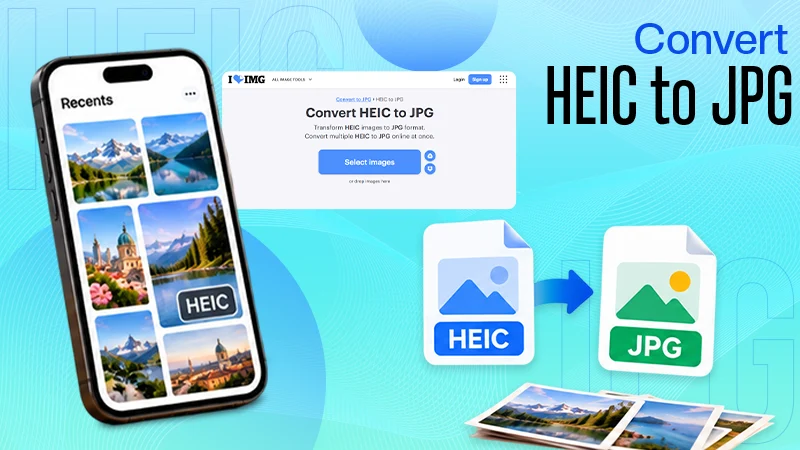
How to convert HEIC to JPG? Every Apple user asks this question when they are unable to send the captured images. For your understanding, HEIC is Apple’s standard image format for storing high-quality photos and conserving storage. It has limited compatibility options, making it difficult for users to upload, share, or open images on other devices. But thankfully, this issue can be tackled when you convert HEIC to JPG images. JPG is a universal format supported by almost every platform.
In this guide, we will take a look at simple ways to convert HEIC to JPG online on iPhone, iPad, Windows, and Mac.
HEIC stands for High Efficiency Image Container and is related to High Efficiency Image File Format (HEIF), which Apple uses to store photos on its iPhones and other devices.
As the company is famous for its image quality, they use this format to support high-efficiency picture storage. HEIC is just like JPG and can save high-res images with a lower footprint, and that is how it assists in saving storage space.
But HEIC is not as compatible as JPG.
JPG, or JPEG, is a universally accepted image format that everyone uses in their daily lives, in modern computers, smartphones, websites, and image-editing software.
Why Convert HEIC to JPG?
If you’re looking to save space, HEIC can help, but if you’re looking for more convenience, JPG may be better suited.
Here are reasons why you want to convert HEIC to JPG:
More Compatibility: JPG will open on almost any contemporary gadget.
Smooth Website Uploading: Many sites on the internet are only compatible with JPEG, JPG, or PNG images.
Easier Sharing Process: You can share JPG files with anyone who doesn’t have support for HEIC on any device or application.
Outdated Software: Older software versions can find it hard to read HEIC files.
Editing Software: Most of the popular editing software works better in image editing with JPG files.
For instance, if your iPhone photo is captured in the HEIC file format and an online application requires a JPG image, then you need to convert it first before submitting the file.
How to Convert HEIC to JPG Online?
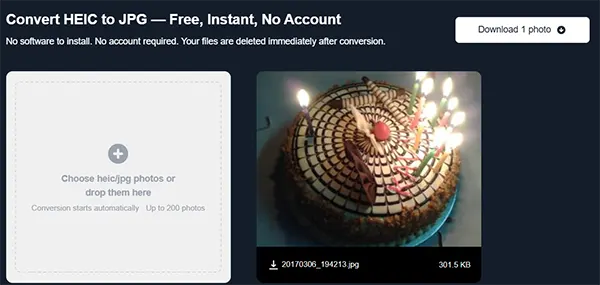
If you’re in a situation where you need a quick conversion, an online HEIC to JPG converter can be the easiest choice. You don’t have to install additional software or change your device settings.
The specific interface will differ among the tools, and the process will be somewhat similar.
Step 1: Select a reliable HEIC to JPG converter
Go to a quality online converter on the internet. Before using one, make sure that it is compatible with HEIC files and outputs JPG files.
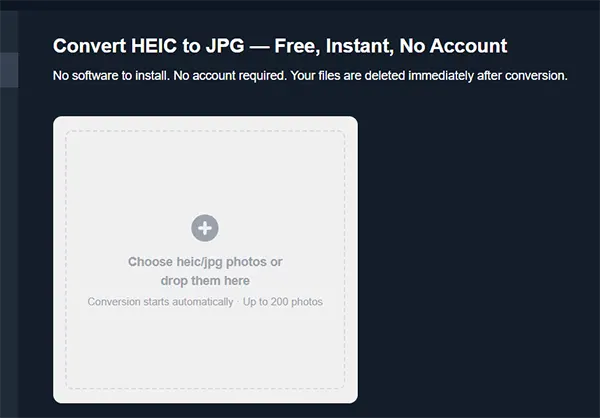
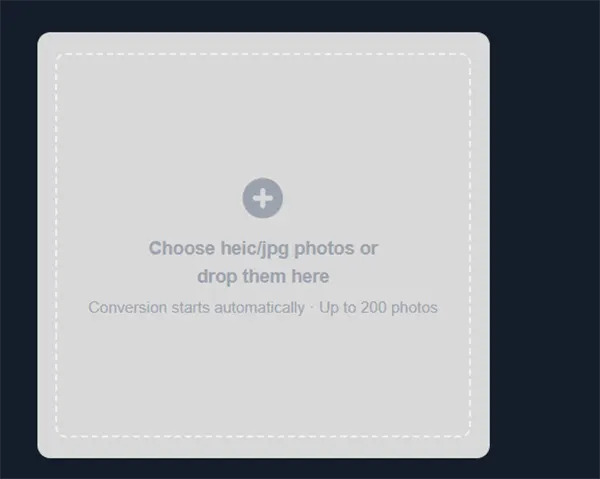
Step 2: Drag and drop the HEIC images
Select the HEIC image to convert from your device. Many tools may also allow you to drag and drop the file into the upload area.
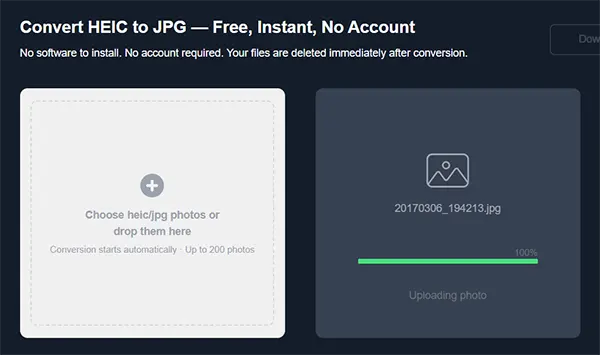
Step 3: Start the conversion
After uploading the pictures, you can initiate the conversion by selecting the JPG format, if required. Now, wait for the tool to give you the finished file.
Step 4: Save the converted file
Once the conversion is done, you can simply save the newly converted image on your device.
You can use an online website for this method, as it’s super simple, like reducing PDF size online, works on every device, and does not take much time.
Always take note that you must read the terms of use first if you are converting personal or sensitive photos.
How to Convert HEIC to JPG on iPhone or iPad?
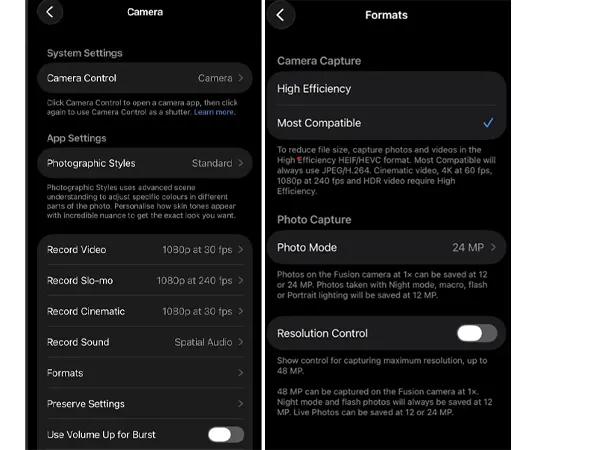
You can either convert the pictures online or use iPhone’s built-in feature to change the format so your future photos are saved in JPG format instead of HEIC.
On your iPhone or iPad:
Go to Settings>> Camera >> Formats >> Most Comptable
The Most Compatible option will store new photos as JPEG files and help you avoid the hassle of converting images later.
Remember that this setting will work on images captured after it has been changed. Currently, existing HEIC photos will remain HEIC files.
To get JPG copies of HEIC images, if they already exist on your iPhone or iPad, an online converter or a proper sharing/file-managment protocol can be employed.
How to Convert HEIC to JPG on Windows?
Windows in general does not support the HEIC format, but it can differ based on model, applications, and installed extensions.
You can install an extension on your Windows device to open HEIC files, which can help to export and save the image as a JPG. If you don’t want to go this route, an online converter is always the best alternative.
Using an online tool to convert HEIC to JPG on Windows:
If you regularly work with HEIC images on Windows, opting for this method can save time and energy.
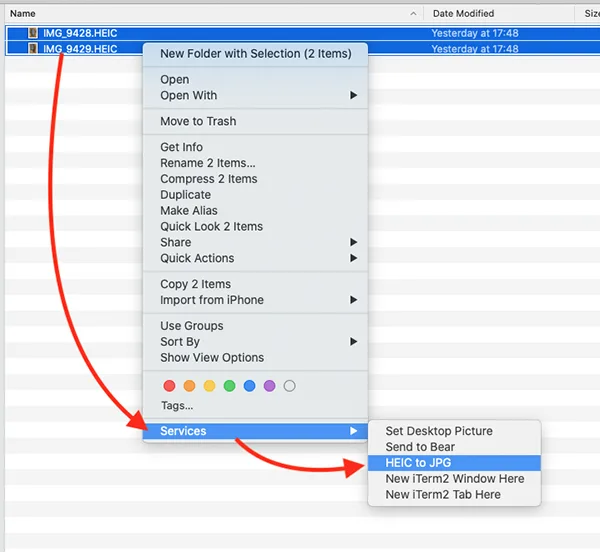
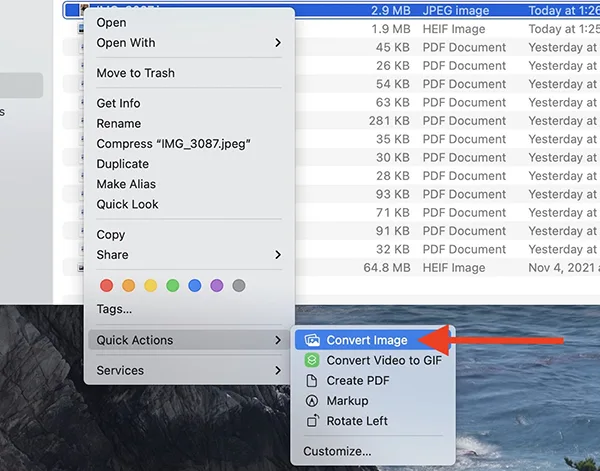
How to Convert HEIC to JPG on Mac?
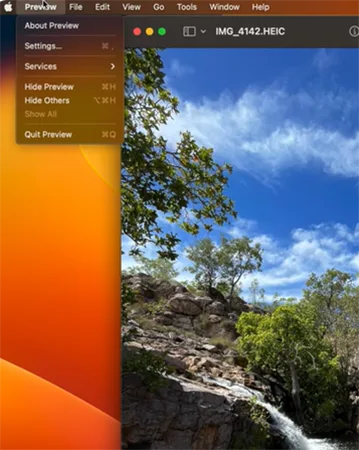
Mac users can use the Preview App to convert HEIC to JPEG. Here are the steps for the same:
Open the HEIC image in the Preview app.
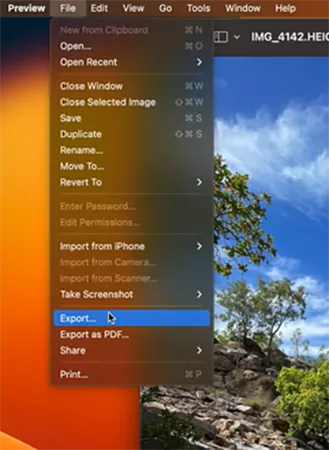
Tap on File in the menu bar.
Select Export.
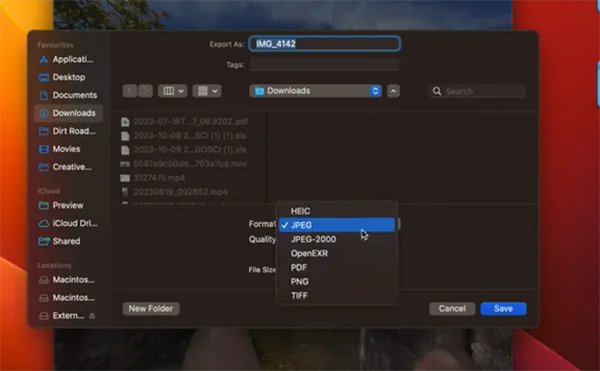
Find the Format menu.
Choose JPEG.
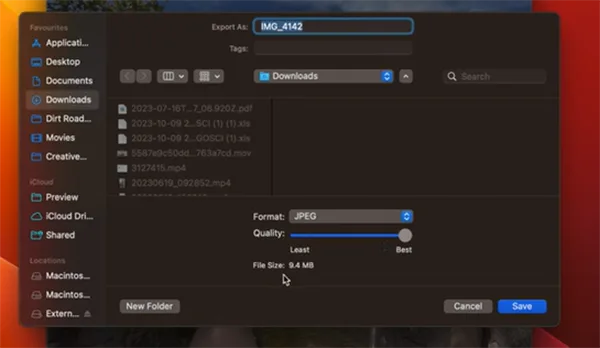
If necessary, adjust the quality level.
Choose a Location to Save To.
Click Save.
Mac will save a duplicate of the original HEIC picture in JPG format.
This is a good choice if you have only a few images to convert and don’t want to upload them to another place on the internet.
How to Convert Multiple HEIC Files to JPG?
It is tough to convert multiple images together manually, but there are tools like Canva, iLoveIMG, and more that can ease out the process.
Batch conversion can accelerate the process by letting you convert a bunch of HEIC images at once, instead of one by one.
It is beneficial when:
You’ve moved numerous photos from your iPhone to the computer.
Several pictures must be created for a website.
You’re creating a presentation or document.
A full set of photographs will be required.
Images are needed in JPG format for a client or organization.
While selecting a batch converter, look for the quality options, other features, and whether the tool keeps the original image resolution.
For future convenience, make sure to keep the original HEIC files and make a separate folder for the converted files.
HEIC to JPG vs. JPG to HEIC
HEIC and JPG aren’t always the best suited for images, so it depends on the intent with which you plan to use them.
If storage efficiency is critical, then HEIC is a good choice. It can deliver quality images without consuming an excessive amount of space and is compatible with modern smartphones and supported Apple devices.
If compatibility is a concern, then use JPG. It is accepted by quite a broad spectrum of websites, applications, devices, and operating systems.
You should consider using JPG if:
Putting pictures on websites.
Posting photos on various platforms.
Working with older software.
Sharing images to a device that might not support HEIC.
It’s best to use HEIC when:
You’re primarily using Apple devices.
Storage capacity is important for you.
The format is completely supported by your applications and platforms.
So HEIC to JPG conversion is typically more for making them compatible with other devices than for improving the picture.
Does Converting HEIC to JPG Reduce Image Quality?
When an HEIC image is converted to JPG, its quality can get degraded due to the lossy compression technique used by the JPG format. However, there’s no noticeable difference if the image is exported at a high-quality setting.
The final product is dependent upon the compression settings and converter. Some tools let you select the quality level prior to making a JPG.
To retain as much quality as possible:
Employ a high-quality outfit setting.
Avoid unnecessary resizing.
Convert the original HEIC file, not a previously compressed picture.
Don’t repeatedly open and save the same JPG.
Save the original HEIC file for future use.
For most purposes of using a photograph for a website or in everyday usage, a high-quality JPG may be enough. If you are using the photo for a professional purpose or for achieving purposes, save the original HEIC file.
Is It Free to Convert HEIC to JPG?
You can, indeed, convert HEIC to JPG for free using a number of online solutions. In cases where you need to process just a few images, free conversion may suffice.
However, free tools may have certain restrictions. The limits that you may see are based on services such as:
Maximum file size.
Maximum number of files that can be converted.
Batch processing.
Conversion speed.
Output-quality controls.
These limitations may not be a problem if you are just converting one or two photos. If you have a lot of photos to convert or upload at once, then you’ll need a tool that can handle batch conversions or larger uploads.
Another factor to consider is privacy. When uploading photos to a web service, including private or confidential photos, find out how the service treats uploaded files and whether they are deleted after being processed or not.
Common Problems When Converting HEIC to JPG
As we have learnt, it is super easy to convert HEIC to JPG, however, you might face some challenges like:
File Not Opening: This happens when the HEIC format is not supported by your operating system or application. Use an alternative image application or an online image converter to make a JPG copy.
Conversion Failed: If the JPG is not crisp and has visible compression artifacts, the output quality is probably too low. Experiment with converting the “original size” constraint. Try opening the original HEIC file first to confirm that it works correctly.
Poor Image Quality: Sometimes the converted images are not clear due to compression. This can happen when the output quality is set too low. You can initiate the process again with a higher quality setting.
Large JPG File: JPG is known to be handy for sharing, but a high-resolution photo can still become a big file. For this, you must change the size of the image or the compression ratio.
Conclusion
Apple users can convert HEIC images to JPG through a simple process on websites, apps, and various devices. An online converter is an easy and fast option to carry out this process. Mac users can use the Preview app; iPhone users can choose to save future pictures as JPG with the Most Compatible option.
Just select the process that works best on your device, choose the files you want to convert, and then use an online HEIC to JPG converter for saving time and hassle.
Convert HEIC to JPG by simply using an online converter, suitable desktop software, or any of the built-in tools like Preview on Mac. For infrequent conversions, the easiest way is typically an online tool: upload the HEIC image, initiate the conversion, and download the converted JPG.
What is the easiest HEIC to JPG converter?
Canva is the easiest online HEIC to JPG converter, which does not require software to be installed. It can be used on any of the devices that have a web browser and is very helpful if you want to convert just a couple of photos.
Can I convert HEIC to JPG for free?
Yes. There are free tools like Canva and iLoveIMG that allow you to convert HEIC to JPG for free. Some may restrict file size, conversions, batch processing, or other limits, so be sure to read the terms of the software before converting a large collection.
How do I change HEIC to JPG on iPhone?
To save photos in the future in JPEG format, go to Settings >> Camera >> Formats and choose Most Compatible. The new photos will be saved in JPEG format, rather than HEIC. Any photos that are already in HEIC format will have to be converted on their own.
How do I convert HEIC to JPG on Windows?
In Windows, use an application that is compatible or an online converter. If you want it to be done fast, upload the HEIC image to a HEIC-to-JPG converter that is web-based and convert the image, then download the JPG.
 By Tina Brown

 By Jim Hartman