 By Jim Hartman
Use a free online PDF editor, built-in annotation tools, or free PDF software. Remember the limits of the tool as there may be advanced features and text editing that will need to be paid to be able to use.

PDFs are preferred for sharing reports, forms, contracts, and business documentation, including documents used in data processing, due to the format remaining consistent across devices. It’s not quite as easy to alter a PDF as you have to edit the Word document.
Text correction may be needed, images might need to be replaced, pages may need to be rearranged, comments may need to be added, or a form may need to be completed. This applies to the right method, depending on your document, device, and editing needs.
Learn how to edit PDFs online on a computer and on a mobile device, and how to fix common PDF formatting problems.
Yes, it is possible to edit a PDF with a compatible tool. PDFs are intended to maintain the layout of a document and are not meant for easy rewriting. That’s why sometimes it’s necessary to use a specific editor when modifying the text.
There are two prevalent kinds of PDF files:
There are also various types of changes that can be made to PDFs. Existing text can be edited or replaced, images can be added, annotations can be added, and forms can be filled, or pages can be rearranged. These are tools that can help with all these tasks, as well as some that will only help with one or two.
When text is selectable within your PDF, you can typically begin editing the document straight away. If it’s a scanned document, check if it has an OCR feature before trying to alter the text.
Online PDF editing software enables PDF editing without having to install desktop software. They come in handy for making instant changes, adding notes, inserting images, and other simple edits from various devices.
Some common tools are iLovePDF, Smallpdf, and Adobe Acrobat’s online software. They offer free usage and features; some have limits on free use while others do not.
To edit a PDF online, here are the steps to follow:
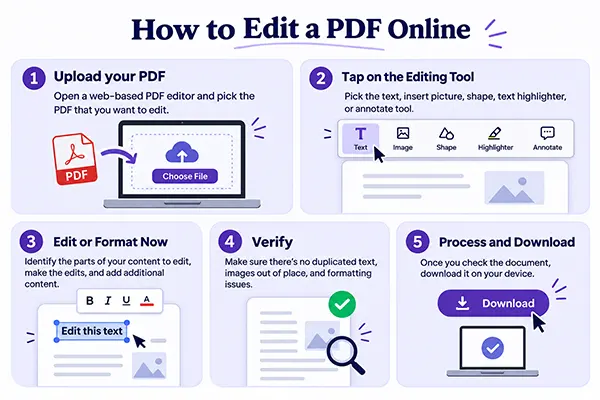
Depending on the platform, editing features are available. A simple editor could possibly enable you to insert boxes of text and comments without altering existing content, while a more sophisticated editor might permit you to edit content directly.
While using online editors can be convenient, make sure to read through their privacy policies and file retention policies before any confidential files are uploaded. For files containing collected information, consider appropriate data quality management practices as well. If you need to edit sensitive financial records, contracts, or identity documents, an offline editor might be a more suitable option.
Adobe Acrobat can be used by those who require more control over the content, formatting, and page layout of a PDF. It can be used to edit text and images, organize pages, and create professional documents.
Adobe Acrobat Reader is designed primarily to be used when viewing, commenting on, signing, and filling out PDFs. Generally, Acrobat’s paid editing capabilities are needed to edit existing text and images.
To edit a PDF in Adobe Acrobat:
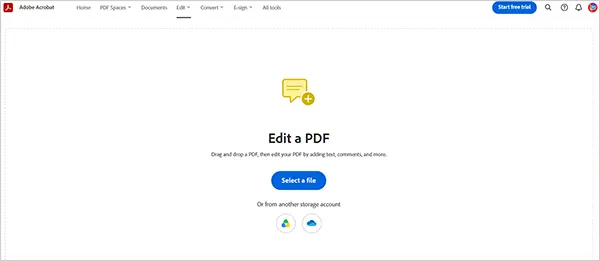
Acrobat works well for professional reports, lengthy documents, and frequent PDF editing. When using complex layouts, unusual fonts, scanned pages, or restricted files, you may need to take extra steps. If all you need is to add a signature or highlight text, you can definitely use a free reader.
If you need to edit a text paragraph, fix spelling, or reorder text in a PDF, you can use Microsoft Word. Word will convert the PDF to a Word document that can be edited; then you can convert it back to a PDF.
This works best with documents with a lot of text and a relatively simple layout:
Here are the steps to edit a PDF using Microsoft Word:
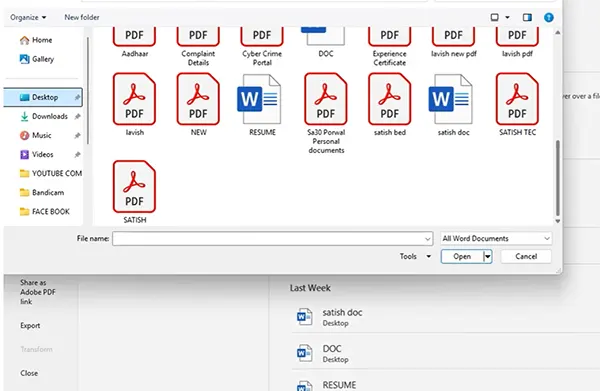
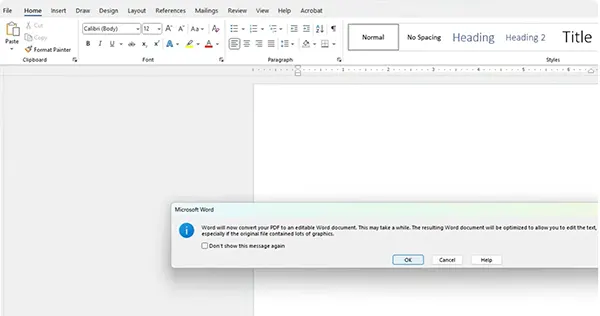
Note: The formatting of some documents may be altered during conversion, especially those with more than one column, complex tables, graphics, or unusual fonts. Always save the original PDF document to check the exported PDF before sharing. If the document needs to be changed to another format, review available data conversion services.
Check Out: What is Data Processing? Definition, Steps, and Types Explained
Built-in PDF editing features and dedicated PDF editors are available for editing PDFs directly on your phone. These are useful when signing documents, adding comments, filling in forms, and making fast changes whilst travelling.
iPhone Markup allows you to add annotations, highlight, draw, and sign. It doesn’t usually offer complete editing features for PDFs.
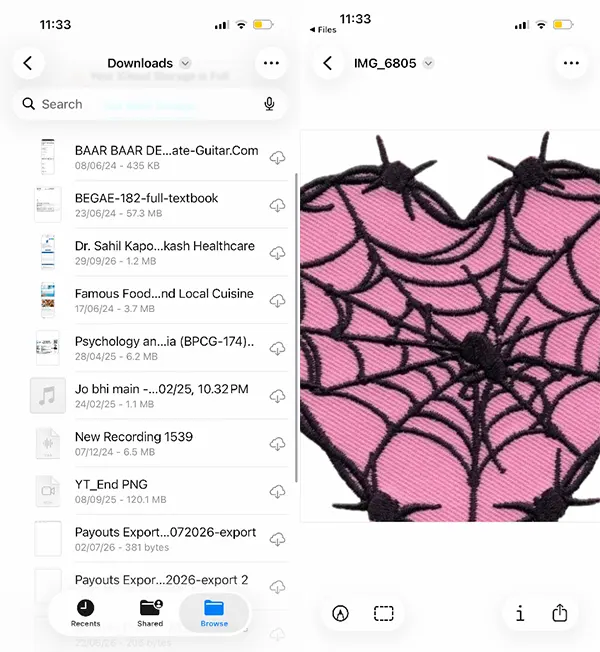
If you want to edit existing text or images, select a PDF editing app that has the ability to do that.
Android users can utilize PDF applications and annotation features that are compatible with the application, such as Google Drive. Adobe Acrobat Reader also enables tasks like commenting, highlighting, and filling forms.
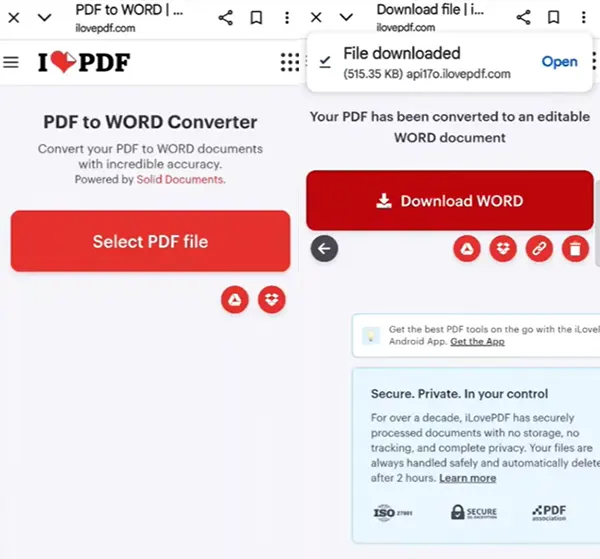
If you have bigger edits to make, then you should use an application with more advanced editing abilities, like iLovePDF.
There are a variety of tasks to be done when editing, and they require different tools. Let’s check out these tasks and how to perform them here:
Open the file in an editor that can be used to edit the text directly in the editor. Find the correct text, edit, and verify the surrounding layout.
A document may be scanned or flattened if you cannot select it. Use Optimal Character Recognition (OCR) to recognize text. Always double-check the output, as letters, numbers, and punctuation may be read incorrectly by OCR.
Select an editing software that gives you the ability to insert images. Click the image button, drag the image in, and place it on the page. Resize and rotate it as desired before saving.
If you have an editor that provides a “replace” feature, use it to replace an existing image. If not, you’ll have to delete the previous picture and insert the new one. Make sure that the picture does not obscure key text or make your document illegible.
Page management tools enable you to delete unwanted pages, reorder them, rotate them, or select specific pages to extract.
Make a copy first when removing pages, particularly if the document has references, page numbers, or a table of contents that might need to be updated. Also, you can reduce PDF size if you are unable to download properly.
Annotations are a way to read and analyze a PDF without altering the content of the document. They work well for collaborative work, feedback, and document reviews.
Common options include:
Open the PDF file, choose the tool for making annotations, and draw on the page. Review the changes and save the document. Keep in mind that if you add a text box to existing text, it does not delete or alter any text.
Interactive PDF forms have fields to fill in with information like names, dates, addresses, and contact information.
If the fields are not interactive, type text over the fields, or if you want to make the document interactive, use a form creation tool. Before filling out official forms, check out what the recipient needs first.
Changes you make to a PDF may not go as you expect. If you know the cause, then you can determine the solution.
You can’t Edit Text on a Scanned PDF
Often, scanning will result in images of the pages rather than selectable text.
Solution: Review converted content for mistakes before modifying it. Scans may be inaccurate due to blurriness or the use of unusual fonts.
Apply Formatting After Editing
The contents of the text, fonts, images, and tables can move while editing or converting.
Solution: Save the original as is (if layout is important), and use a dedicated PDF editor and check page break alignment, images, and fonts before saving the final version.
File is Too Big to Upload to an Online Tool
Some online editors set limits on file size or number of pages, particularly with free accounts.
Solution: Compress it, split it up into smaller parts, or use a desktop editor to process it on-site. Once compressed, make sure that the text and pictures are easy to read. If you are uploading any confidential files, please be aware of the implications of doing this to an online service.
Depending on the nature of the changes, device, and budget, there are the best ways to edit a PDF. PDF editing tools for the web can make simple edits quickly; Adobe Acrobat is more advanced and can allow for more edits. While mobile applications can be handy for making edits when you’re on the move, Microsoft Word is suitable for rewriting text.
| Methods | Best Suited For | Cost | Devices | Editing Level |
| Online PDF apps | Simple text edits, annotations, and image editing | Both free and paid options available | Windows, Mac, and Mobile | Beginner to moderate |
| Adobe Acrobat | Professional level editing, page rearrangement, and advanced features | Free reader to scan document and paid editing tools | Windows, Mac, and Mobile | Advanced level |
| Microsoft Word | Rewrite content and update document | Comes with Microsoft 365 plans. | Windows and Mac | Moderate |
| Mobile PDF app | Signature, annotation, and highlighting | Both free and paid options available | Android, iPhone, tablet | Basic to moderate level |
Consider your requirements before selecting a tool; you may want to edit existing text, change images, move pages around, or just add comments. For some basic change, you can use a free online editor, which is sufficient. For complex documents that need editing regularly, specific software might be preferable.
In either case, be sure to make a copy of the original and check the result for formatting errors before sending it out.
Editing a PDF can be simple if you have a reliable PDF editor. You can make quick changes from an online editor, while Acrobat provides more advanced editing options; Microsoft Word is helpful for rewriting a document, and mobile apps are helpful for annotations and signatures.
Scanned documents will need OCR, and complex layouts will need additional layout checks. Make sure to have a copy of the original layout checks before sharing the file with others, and verify that all the edits are correct and the documents look like you wanted.
Read Next: What Is Data Extraction? Learn, Its Process, Types, Benefits, Challenges, and Top 4 Tools
Use a free online PDF editor, built-in annotation tools, or free PDF software. Remember the limits of the tool as there may be advanced features and text editing that will need to be paid to be able to use.
Tools like iLovePDF or Smallpdf can be used to edit PDF text, or open the PDF in Microsoft Word. Select the various options for content editing and page rearrangement.
Yes, you can annotate, sign, and complete documents with iPhone Markup or any third-party app. An advanced text editing application might be necessary if you are looking for advanced edits.
Scan the pages with an OCR-enabled PDF editor to recognize text. Carefully check the converted text for mistakes before editing and saving the text file.
Yes, as long as you use a reliable service that ensures proper security measures and privacy protocols. If you need to edit sensitive material, check file retention policies or consider using an offline editor.
PDFs are preferred for sharing reports, forms, contracts, and business documentation, including documents used in data processing, due to the…
October 26, 2026
How to convert HEIC to JPG? Every Apple user asks this question when they are unable to send the captured…
October 7, 2026
Digitizing documents used to be tough; now it’s easier with scanning apps, smartphones, and digital scanners that can digitize documents…
September 18, 2026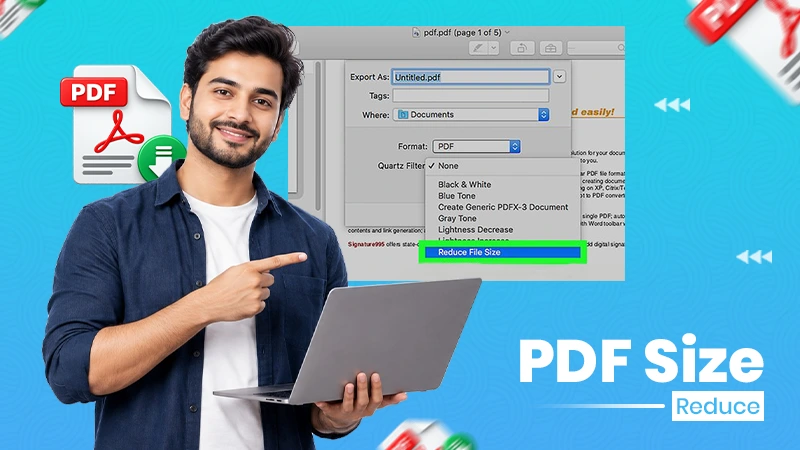
More often than not, PDFs become too large because they contain high-resolution images, scanned pages, embedded fonts, hidden data, and…
September 1, 2026
In this fast-moving world. Automation is the key to enhancing efficiency, accuracy, and speed of workflow, without any human intervention.…
September 1, 2026
Imagine you are working on an important project and have created an excellent final draft. When it comes to sharing…
August 24, 2026 By Tina Brown